
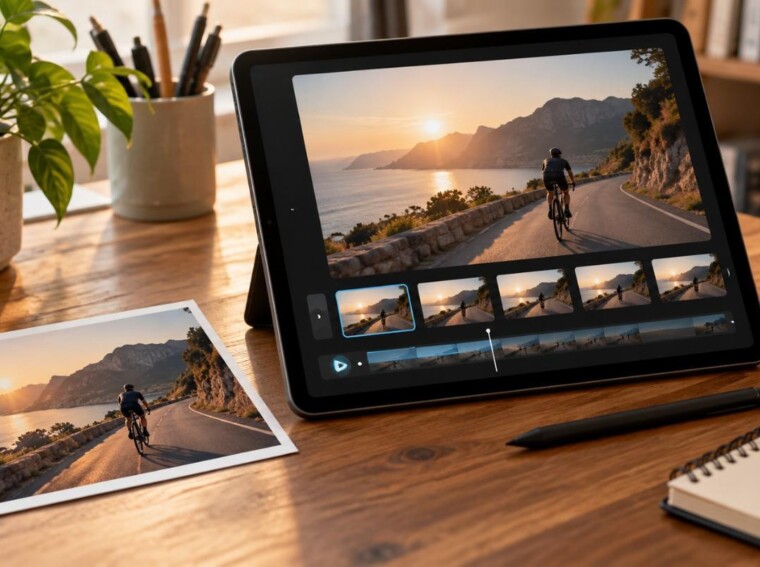
A seller with one clean photo of a handmade mug wants steam curling above it for a 10-second Instagram Reel. No reshoot is needed, since image-to-video tools animate the existing photo from a single line of direction. The 6 free AI image-to-video generators compared here would each move the steam differently, through keyframes, effects, or camera presets. Their free limits differ too, and those limits often matter more than the motion quality.
Part 1. 6 Best Free AI Image-to-Video Generator Tools
Control is the real difference, with keyframes on Pika and Luma at one end and Leonardo’s preset camera moves at the other. Go through each overview below to find the free AI image-to-video generator that fits your project:
1. MagicLight AI
Best For: Portraits that need to speak and product photos headed for a longer narrated story.
Although MagicLight AI centers on narrated stories, it animates single photos too. Its Image tab can clean up a weak source photo first, with 5 models, Nano Banana 2 among them. To match a real product, it also takes a reference photo of up to 20MB, whether JPEG, JPG, PNG, or WEBP.
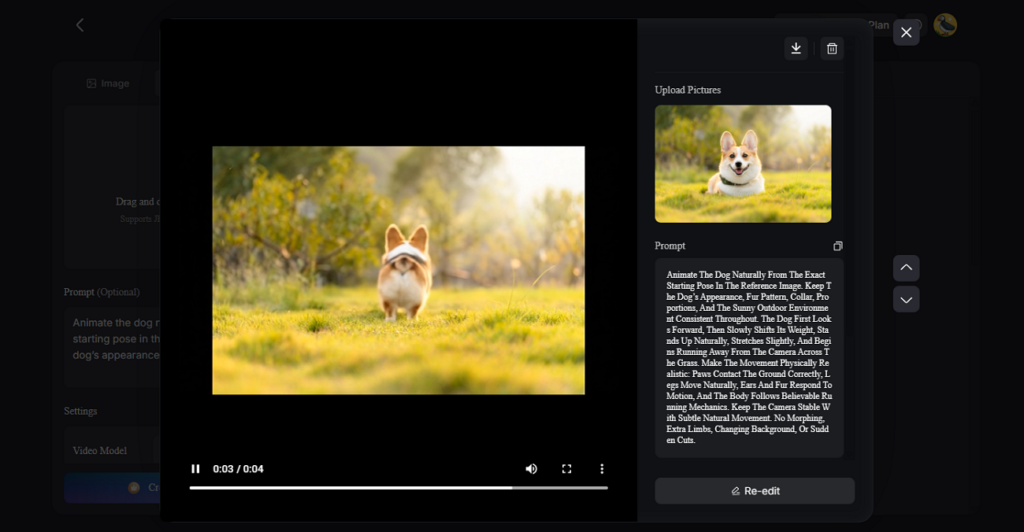
Motion happens in Image to Video, where photos and illustrations alike upload as JPG or PNG files under 10MB. Up to 1,500 characters fit in its prompt, enough to describe a slow zoom and a head turn in the same shot. The same still can also anchor a reusable character inside Story to Video. That path makes MagicLight an image-to-video AI generator that scales into fully narrated stories.
- Prompt Box: Image tab descriptions run up to 500 characters. That is enough to describe the mug’s glaze, the window light, and the wooden table without cutting words.
- Aspect Ratios: A Shorts clip and a website banner can come from the same photo, since the Image tab offers 9:16, 16:9, 4:3, and 1:1.
- Clip Length: Half a minute is the ceiling for one Image to Video clip. You can join several clips for longer sequences.
- Lip Sync: A voice line makes a portrait speak with matching mouth movement. This suits talking portraits and short teasers.
- Video Model Choice: Any of 20 video models can animate the same still. Each model gives a different motion style.
- Camera moves are described in plain language rather than keyframes.
- Weak results are regenerated from a revised prompt, not a new upload.
- Captions and narration are combined with the clip in one project.
- You cannot export clips above 1080p resolution, limiting its exporting ability.
2. Runway
Best For: Filmmakers who want cinematic motion and editing after generation.
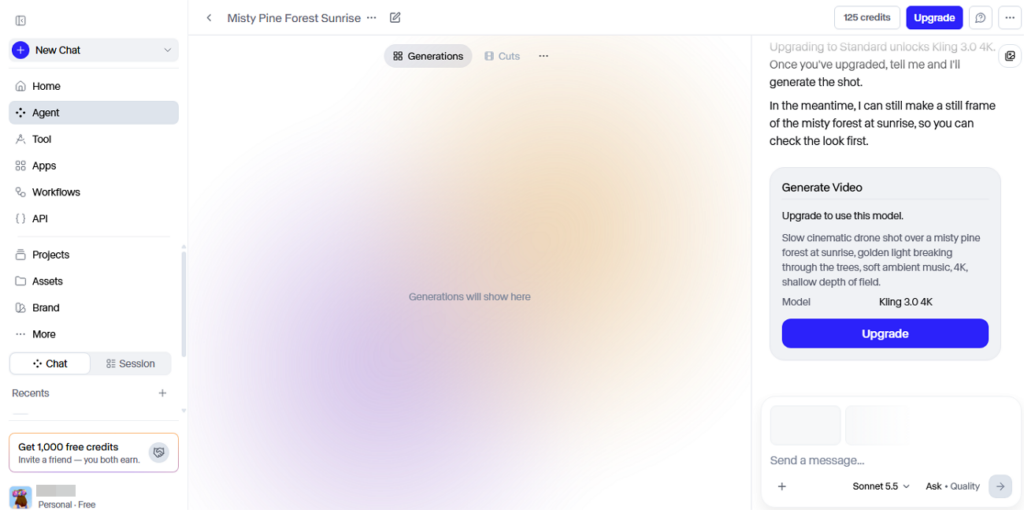
For cinematic image-to-video, Runway’s Gen-4.5 model turns a still into a 2- to 10-second clip at 720p. Runway’s Gen-4 prompting guide says to focus on describing the motion, rather than the input image, when prompting this AI image-to-video generator. Gen-4.5 even offers a letterboxed 21:9 frame for a film look, next to 16:9, 9:16, 1:1, 4:3, and 3:4.
- An actor’s filmed performance drives a still character’s movement in Act-Two.
- Edits made to one frame spread across the whole clip in Aleph 2.0.
- Besides Gen-4.5, the workspace also runs Kling 3.0 and WAN2.2 Animate.
- Sequential prompting gives better control over shot timing.
- Stitch Videos combines clips into videos up to 60 minutes.
- Each Gen-4.5 generation is limited to 10 seconds.
- Gen-4.5 currently requires a Standard plan or higher.
3. Pika
Best For: Social creators who add novelty effects to still images.
It’s another best image-to-video AI generator when the goal is a short social clip rather than a long scene. For a meme or a product teaser, Pika 2.5 turns one image into a 5- or 10-second video at 720p or 1080p. A prompt controls subject movement, camera behavior, and the overall action.
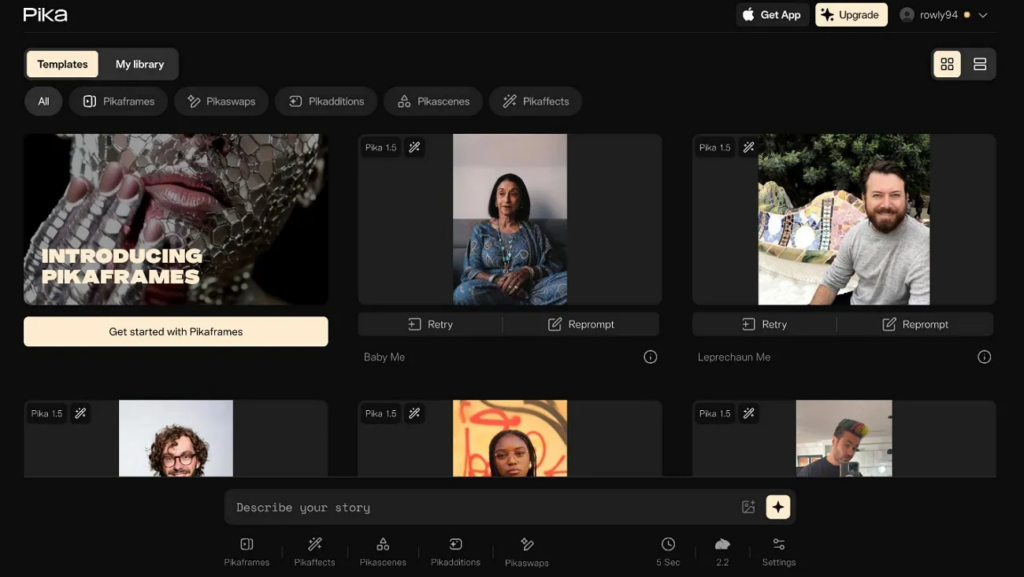
- Up to 5 keyframes join into one clip through Pikaframes.
- A still subject can melt, squish, or deflate on cue with Pikaffects presets.
- People or objects from reference images are placed into existing footage using Pikadditions.
- Export videos in common aspect ratios, including 9:16, 16:9, and 1:1, for easier preparation.
- Pika 2.5 renders at 1080p as well as 720p, which matters when a clip ends up on a large screen.
- 5-keyframe Pikaframes projects are limited to 720p.
- One Pikaframes prompt controls all transitions, not each separately.
4. Luma Dream Machine
Best For: Video creators planning precise camera paths within a single shot.
Luma’s AI image-to-video generator is built around Ray3.2. Luma’s Ray3.2 page says image2video can “produce 5 or 10-second native clips,” with 720p as the default resolution. A start and an end frame pin down where the shot lands and Extend continues an earlier generation without a rebuild.
- Multi-Keyframe lets you place up to 16 keyframes for frame-level direction.
- Clips can loop back to their opening frame for repeating background visuals.
- Movement and camera paths from one shot carry into another with Motion Transfer.
- Output runs at 360p, 540p, 720p, or 1080p, leaving a lighter option for drafts.
- The starting artwork can come from Luma’s own UNI-1.1 image model, with no second app.
- Standard Ray3.2 generations are limited to 5 or 10 seconds.
- Ray3 itself does not currently generate native audio.
5. Artlist
Best For: Projects that mix AI clips with licensed Artlist music and stock footage.
Projects already using Artlist music can stay on one subscription, since its AI section works as a best AI image-to-video generator too. There is no single house model here, and the menu runs through Kling 3.0, Kling O3, Veo 3.1, Seedance 2.0, Hailuo, and Wan. For a product reveal, Artlist’s Kling 3.0 notes offer a way to lock the beginning and end of your video.
- Veo 3.1 supports short video generation but can export clips in 4K.
- With Kling O3, frontal and reference images keep a person or prop moving accurately.
- Native audio in Veo 3.1 adds ambiance and dialogue synced to the picture.
- Kling, Veo, and Seedance can animate the same still in one workspace.
- Artlist describes Kling 3.0 as offering “Multi-shot generation, up to 15-second clips, storyboard-level control.”
- Even on Kling 3.0, a single clip ends at 15 seconds, and longer scenes need stitching.
- Length depends on the selected generation model.
6. Leonardo AI
Best For: Creators who design images in Leonardo and animate them in place.
Leonardo AI animates a picture with Motion 2.0. Uploaded images can also serve as starting frames, but Leonardo says uploading your own image for video generation requires a paid account. Pictures generated inside Leonardo can still be animated on those models, which keeps it a free AI image-to-video generator for its own images only.
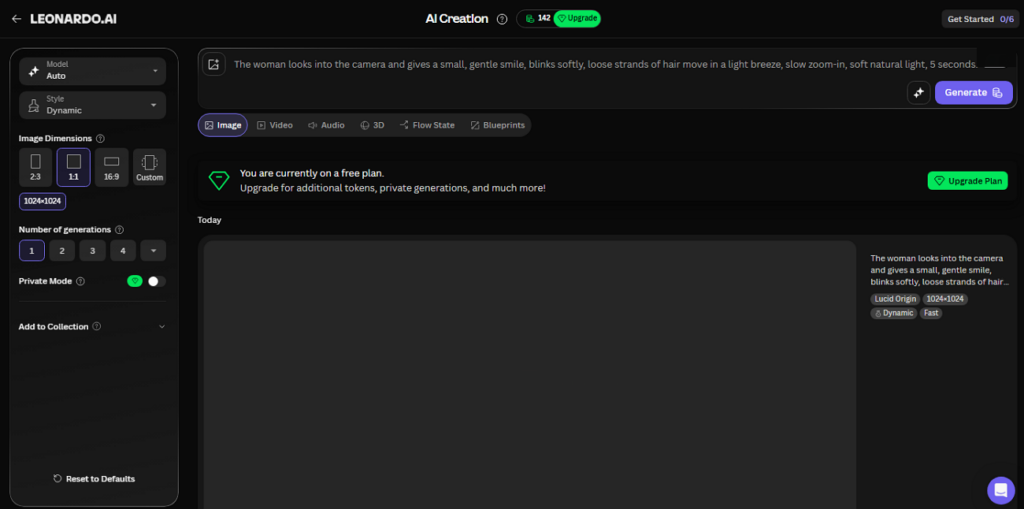
- Generate Video allows users to animate supported images directly.
- Preset camera moves, from a dolly push to an orbit, come from Motion Controls.
- Lighting and color styles, such as lens flare or pastel tones, set each clip’s look.
- Canvas tools can fix the starting image before animation.
- Several video models are available from the same workspace.
- Motion 2.0 styles cannot combine with Motion Controls or Elements.
- Personal image uploads for video require a paid account.
Compare All Free AI Image to Video Generators
Frame input and motion control differ from tool to tool. Picking the best image-to-video AI generator comes down to whether a project need keyframes, camera presets, or one-step effects. Review the mentioned table and compare all 6 options:
|
Tool |
Frame Input |
Motion Control |
|
MagicLight AI |
Uploaded image |
Prompted camera moves, lip sync |
|
Runway |
Single image |
Camera prompts, performance transfer |
|
Pika |
Image or multiple keyframes |
Pikaffects, Pikaframes |
|
Luma Dream Machine |
Image and supported keyframes |
Loop, Extend, Motion Transfer |
|
Artlist |
Model-dependent image inputs |
Varies by model |
|
Leonardo AI |
Uploaded or generated images |
Camera presets, lighting styles |
Part 2. How to Create Videos from Images with MagicLight?
MagicLight AI handles still images through Image to Video, a tool in the Video tab. Like any free image-to-video AI generator workflow, it moves from upload to motion, and the steps are guided below:
Step 1. Upload the Image
Launch the MagicLight AI tool and tap Toolbox to access the image-to-video tool.
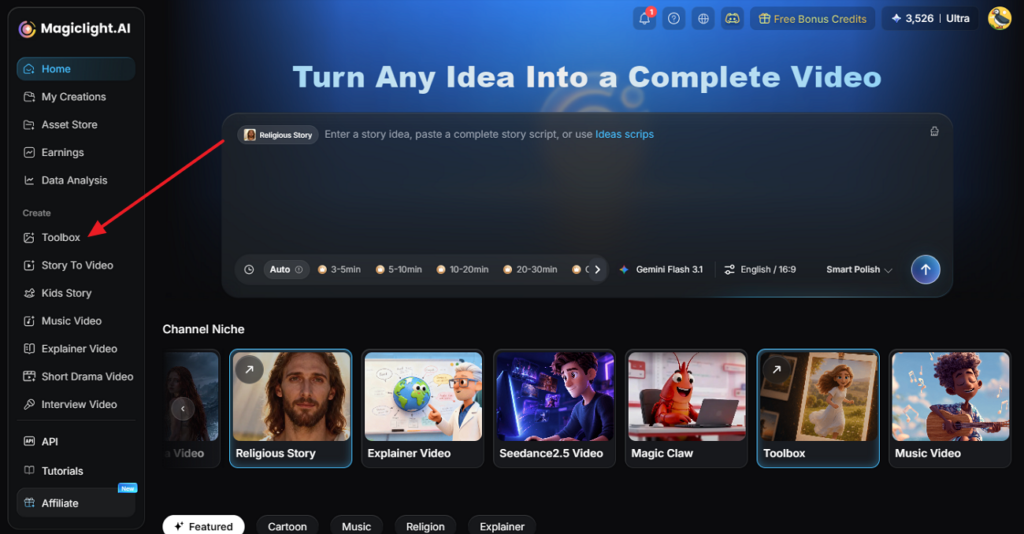
Step 2. Describe the Motion
Switch to the Video tab and drop in the photo, keeping it a JPG or PNG under the 10MB limit. For the mug, a prompt like “slow push-in, steam curling up from the coffee” fits well inside the 1,500-character box. If the logo on the mug should not warp, the prompt can ask for it to stay still.
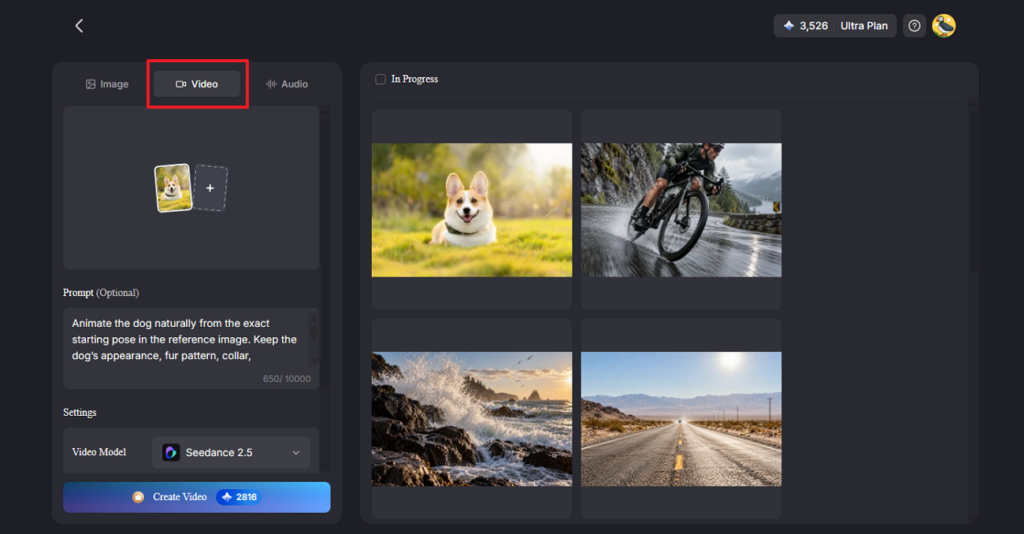
Step 3. Adjust the Style and Format
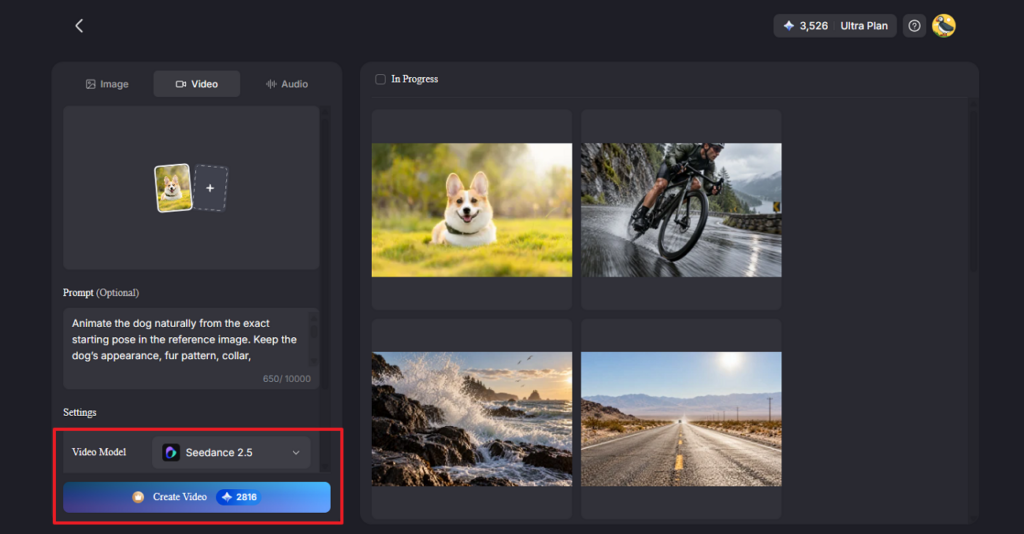
The 20 video models each move a still differently, and style, length, and aspect ratio are set after picking one. Portraits can also speak, since a short voice line adds lip-synced speech before the Create Video button starts the render.
Step 4. Refine and Export
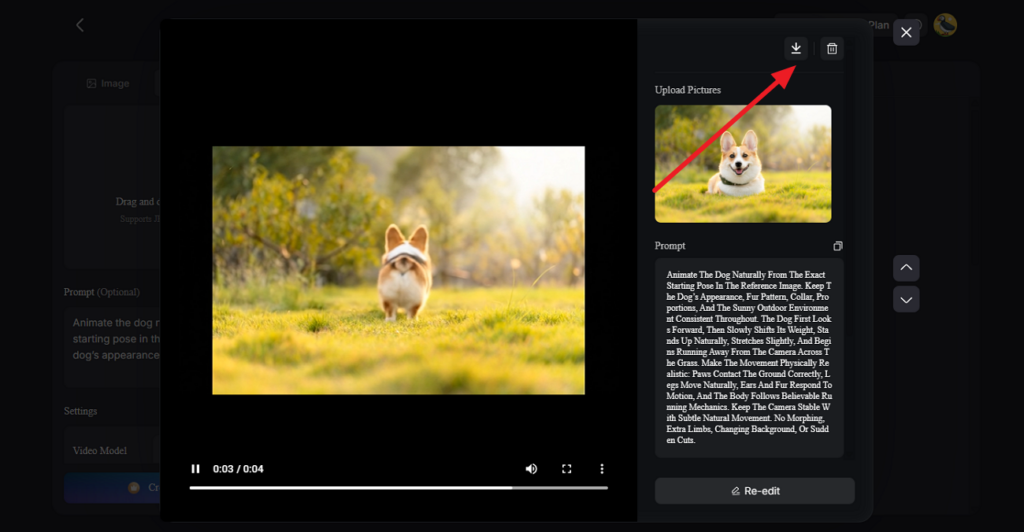
A preview with drifting motion calls for a revised prompt and another run, using the same uploaded image. Captions or narration can be added at this stage, before the clip is exported in HD. The Download icon then saves the finished version to the computer.
Conclusion
A free AI image-to-video generator helps turn still pictures into animated clips, but each tool offers different motion controls. Runway supports cinematic camera movements, while Luma Dream Machine adds keyframe control. Pika creates playful effects, and Artlist offers multiple video models. Leonardo AI combines image creation with animation, while MagicLight AI adds lip sync, narration, and tools for turning individual clips into longer stories.
FAQs About Free AI Image to Video Generators
Is there a free AI image to video generator?
Several AI image-to-video generators offer limited free access. Pika provides a free plan with credit-based generation, while Luma Dream Machine offers restricted testing options. MagicLight AI also provides sign-up credits without requiring a card.
Which AI turns a photo into a video for free?
Pika and MagicLight AI offer ways to test photo animation with limited free access. Luma Dream Machine and Leonardo AI provide additional options, although supported inputs, models, and generation limits depend on the account.
Do free tools add a watermark?
Watermark rules vary between platforms. Runway and Luma Dream Machine watermark free generations, while Pika currently lists watermark-free exports. Free plans can also restrict resolution, credits, and commercial use.
Can MagicLight animate a photo for free?
MagicLight AI offers free sign-up credits without requiring a payment card. Users can test supported photo-animation features, including talking portraits. Available clip lengths, export quality, and watermark restrictions depend on the selected model and plan.