

Various free online tools, such as EaseUS Vocal Remover, can instantly remove the background music from a video. These web-based systems utilize AI to separate vocals, music, and noise, providing more creative freedom. The best part? Most of these tools offer drag-and-drop functionality and automated processing capabilities without requiring installation. This article covers 5 of the best and free online background music removal tools for creators, students, marketers, and multimedia professionals. These solutions are compatible with laptops and smartphones and are easy to use.
alt: remove background music from video online free
Why Remove Background Music from Video Online Free
Background music can interfere with presentation, lesson, and vlog editing. You may wish to replace it with music or narration, or because it distracts from the speaker. Whatever the cause, free online background music removal programs are one of the easiest and most successful methods. The reason is:
-
Convenience of Online Tools
Online vocal and music removers replace sophisticated editing tools. These tools work seamlessly in your web browser, eliminating the need to install or download bulky apps. On PC, Mac, tablet, or smartphone, you may use the tool quickly. Most platforms accept uploads in MP4, MOV, and AVI formats and allow drag-and-drop functionality. This accessibility makes it ideal for mobile users and those using shared or low-storage devices.
-
Cost-effectiveness
Simple audio reduction might be too expensive using Adobe Premiere Pro or Final Cut Pro, especially for one-time or occasional users who don’t want to purchase applications. Free internet options are effective alternatives. Some programs offer free audio removal, with expensive upgrades for more complex demands. Student and casual editors can accomplish their work without breaking the bank.
-
User-Friendly Experience
Simplicity is one of the finest features of these internet tools. With a few clicks, platforms automatically isolate music from vocals and ambient noises in videos. No need to understand sophisticated audio tracks, waveforms, or timeline manipulation. Most videos are analyzed in under a minute, and you can see or download the findings immediately.
5 Methods to Remove Background Music from Video Online
Video background music removal is no longer a requirement for pricey software or specialized skills. These top 5 online tools make it easy and clean to remove audio. Explore the finest alternatives in detail.
-
EaseUS Online Vocal Remover
EaseUS Online Vocal Remover is the best at eliminating background music from web videos due to its flawless performance, sophisticated AI, and intuitive user interface. This free browser-based software extracts voices and music from audio and video files in seconds. EaseUS removes karaoke, a cappella, and background noise fast and precisely.
The platform supports MP3, WAV, AAC, AIFF, M4A, FLAC, and MP4. Fast file processing (under 45 seconds for a 5-minute video) without audio loss. The simple interface requires no signup, downloads, or installations.
Key Features:
- 100% music/vocals separation
- Advanced precision AI
- Multiformat compatibility
- Fully free and online
- Clear output with voice or instrumental recordings
EaseUS Online Vocal Remover Instructions:
Step 1. Go to “Vocal Remover” on the EaseUS website.
Step 2. Click “Choose File” or drag & drop your video file.
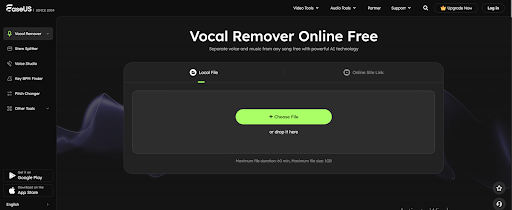
Step 3. Let the AI evaluate the file. This utility splits it into vocal and instrumental sections.
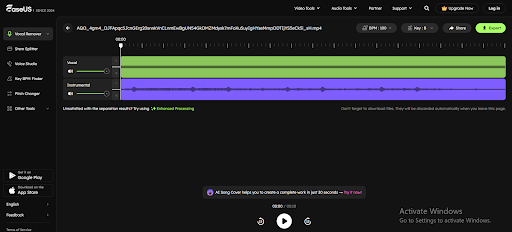
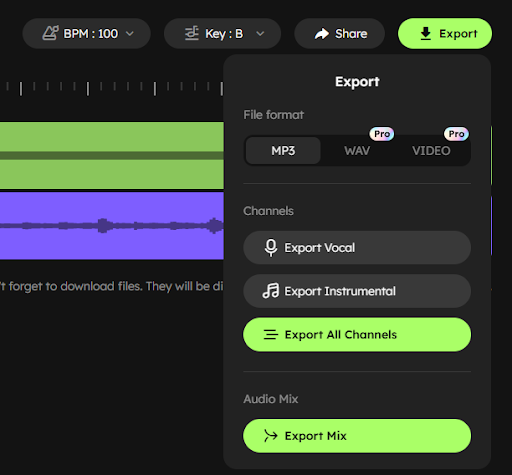
Step 4. Select the output type. Depending on the type of video or audio file, you can download the instrumental or voice tracks in MP4 or AAC format.
EaseUS is ideal for both beginners and experts who need fast and reliable background music removal. It produces professional-quality YouTube, lecture, and presentation editing without a learning curve.
-
Canva
Canva is a powerful online video editor that allows for audio muting. Canva enables TikTok, YouTube, and Instagram producers to eliminate background music with a few clicks. MOV, MP4, MPEG, MKV, and WEBM are supported.
There’s no video length limit; however, each scene must be under 10 minutes in length. If your material exceeds that, break it down into scenes. Follow the steps to remove music in Canva:
Step 1. Visit Canva Vocal Remover. Click “Upload your video” to upload selected files.
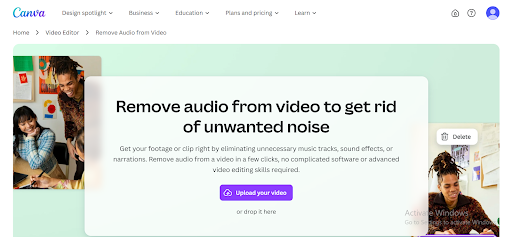
Step 2. After uploading, select the video timeline and hit the top volume button to mute.
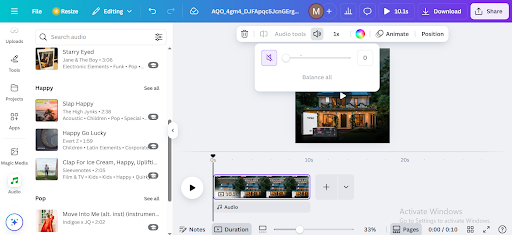
Step 3. Click “Share” at the upper right to download your muted video.
Canva offers a straightforward interface for muting background music and editing videos.
-
VEED
VEED.io is a simple, powerful video editing package. A strong audio remover makes muting video files easy. VEED supports MP4, MKV, MOV, FLV, and AVI, making it ideal for music removal without software.
A cloud-based technology allows project access from any device. The free version limits footage to 10 minutes and 720p. Remove music in Canva using these steps:
Step 1. Drag-and-drop your video to VEED.io.
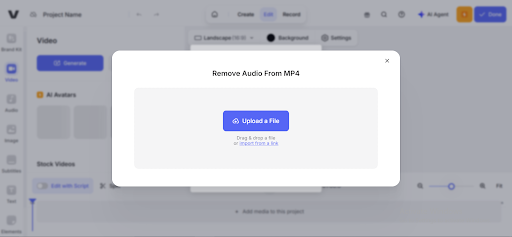
Step 2. Right-click the video track and select “Audio” > “Mute Audio.”
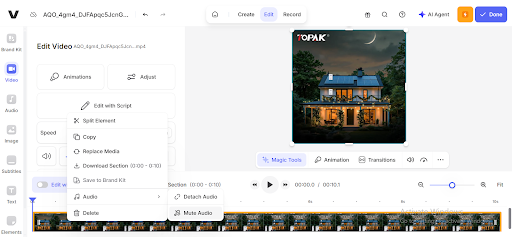
Step 3. Download your muted file by clicking “Done” and “Export Video”.
VEED is ideal for creating brief videos that require background music removal, the addition of subtitles, and the use of filters.
-
Media.io
Media.io is a powerful platform that separates video background music from vocals using AI. It supports MKV, MP4, MP3, M4A, OGG, and other common audio and video formats. Precision and quality retention distinguish Media.io.
While effective, the free version limits file size to 100MB and allows just one download without registering. It takes 5-6 minutes to analyze a 5-minute video. Follow the steps below:
Step 1. Visit Media.io in any contemporary browser.
Step 2. Drag & drop or click “Upload” your video.
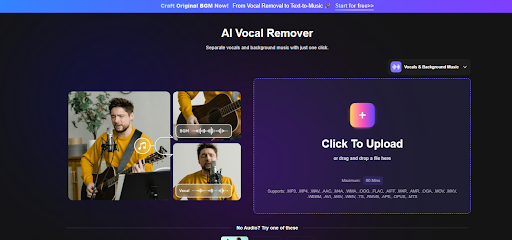
Step 3. Select “Vocal & Background Music” for separation. Click “Separate Now.” It will result in three files:
- Original Track
- Instrumental/Background Music
- Vocals
Step 4. Download sorted songs after AI processing. Download and utilize the accompaniment in your movie editor.
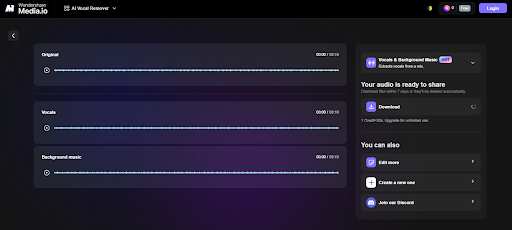
Media.io is an excellent choice for AI-powered music separation, offering audio and video processing capabilities; however, its free edition has several limitations.
-
Kapwing
Web-based Kapwing video editor has various options and an easy interface. Videos may be edited, resized, subtitled, and background music removed with Kapwing. Formats: MP4, 3GP, MOV, WEBM, GIF.
Exporting without watermarks or in HD requires a subscription; however, the application is free. However, it produces high-quality output and enables users to share video links. How to Use Kapwing:
Step 1. Open the Kapwing online tool, and select “Upload File.”

Step 2. Click “Add Media” in the Media area to upload your video.
Step 3. Drag the video to the timeline. Right-click the track and choose “Detach Audio.”
Step 4. Remove the audio track. Click “Export Project” or download to select the format and quality.
Kapwing offers a comprehensive suite of video editing tools for users who require more than just noise removal.
Conclusion
Powerful and free web solutions make video background music removal easier than ever. EaseUS Online Vocal Remover, Canva, VEED, Media.io, and Kapwing are trusted tools for social media editing, professional presentations, and voiceovers. Easy usage, available formats, and processing speed distinguish each platform. Due to its strong AI capabilities, user-friendliness, and free availability, EaseUS is a great choice.
FAQs
The following are the most common questions regarding how to remove background music from videos online:
-
How to Remove Background Music from Video?
Use an online vocal remover or video editor to remove background music. EaseUS Vocal Remover enables you to upload a video, detect and separate audio tracks, and get the cleaned version. Isolate vocals or minimize surrounding sound. This typically requires only a few clicks, and no software installation is needed.
-
How to Remove Background Music from Videos Online without a Watermark?
Select platforms with watermark-free export. EaseUS Online Vocal Remover may silence or remove audio from videos without watermarks. If needed, create a free account and check export options before downloading. Some systems need expensive upgrades for watermark-free, high-resolution downloads.
-
Does AudioCleaner Remove Background Music?
AudioCleaner reduces noise and enhances audio, not background music. It may minimize noise or echo; however, EaseUS, Media.io, and Kapwing are better at isolating or removing background music. These platforms accurately distinguish music from vocals and background noise using AI.